The Verdict

Back in April, I asked 6 friends to pass rapid judgement on my latest attempt to define the Roundsheet application.  I asked them to give the document a quick scan and to provide answers to the questions below with either Yes or No, and to feel free to add comments or suggestions if they wished.

  1. Were you able to understand what was being described?
  2. Do the Roundsheet concepts make sense to you?
  3. Do you think a Roundsheet application would give users something they haven’t got already?
  4. Is it worth pursuing this idea any further?

I received 5 replies. Not everyone was able to answer either Yes or No to each question – some answers were ‘partly’ or ‘sort of’ or ‘don’t know’ or ‘possibly’; so, I’m going to classify all such in-between kind of responses as ‘not sure’. Applying this rule of thumb, the bare number results were:

Question Yes Not Sure No
Able to understand? 3 1 1
Concepts make sense? 3 1 1
Something user’s haven’t got? 2 3 0
Worth pursuing? 2 2 1

 Some of the comments were interesting:

“one would think that many spreadsheets have pie chart functionalities: your concept is really about how to use those functionalities”

“whether this could be a protected tool? I think you would have difficulty”

“still wondering why the roundsheet format is any better than the tabular format which apparently could be used instead?”

“may be of interest to those who get frustrated by the complexities of linking Microsoft Excel and PowerPoint applications – I have come across a few of those in my career!”

“I feel there is a core there that could be extremely useful”

However, overall, there’s no overwhelming consensus that this is a winning idea, and it’s probably unlikely that time spent trying to promote its development into a product would be rewarded; so I think this is the time to put this journey to bed. I have enjoyed the intellectual challenge it has given me; and have the satisfaction of knowing that I took the ideas as far as I could and finished the job. I could always bring the topic out of retirement should someone come along with a serious interest in taking it forward.

Thank you to all of you who, over the years, have taken the time to wade through and pass comment on the various specification documents.

Hikes through the preservation hinterland

I’ve just finished dealing with two particular digital preservation challenges that exist within the document collection I’m currently working on. The first involved two Lotus Notes files; and the second concerned some Windows Help files. My experience with these issues illustrates a) how just a few files can take a lot of work to resolve, and b) that there’s often an answer out there to seemingly impossible preservation problems provide you are prepared to look diligently enough.

I really didn’t believe I was going to find a way to unlock the Lotus Notes files since Notes is a major and very expensive piece of software that I don’t possess; and, in any case, it applies sophisticated time-limited password and encryption controls for its use. Despite being aware of these issues, I thought I’d take a quick look on the net to see if I could find any relevant advice. It was time well spent; I discovered that it’s possible to download a local evaluation copy of Notes for 90 days, and that, because it doesn’t run on a server, this sometimes enables old Lotus Notes files to be opened. I duly downloaded the software and installed it; and then, regardless of the mysteries of Notes access controls, had access to the whole of one of the files (which contained conference-type material) and to parts of the other (which contained sent messages). I still had the username and expired password from the time the files were created and I think this may have helped to access the latter – though I’m not sure about that. Anyway, in both cases, I was able to print out the material to PDF files. I had to manually reorder the conference-type material and to reinstate a few hundred links in it, but that was it – job done!

The Windows Help files were a lot more demanding. Microsoft stopped supporting the WinHelp system (.HLP files) in 2006 in favour of its replacement, Compiled HTML Help (.CHM files). Although Microsoft did issue a WinHelp viewer for Windows 7 in 2009, WinHelp is essentially an obsolete format – it isn’t supported in Windows 10. I’m still running a Windows 7 system so am still able to view the HLP files – but they had to be converted now if they are ever to be accessed again in the future.

There is much material on the net about how to convert HLP files into CHM files, but, as someone with no knowledge at all about how files in either of these systems are constructed, I didn’t find it easy to understand. I soon realised that converting from one to the other was going to be a challenge. However, I did eventually find a web site which offered clear practical advice which I could follow (http://www.help-info.de/en/Help_Info_WinHelp/hw_converting.htm), and I duly downloaded the recommended HLP decompiler; and the Microsoft HTML Help Workshop software. The process to be followed went something like this:

  • Decompile the HLP file into its component parts (consisting of a help project file with the extension .hpj, along with one or more .rtf documents, an optional .cnt contents file, and any image files – .bmp, .wmf, or .shg – that are used within the Help file).
  • Convert the various HLP files into HTML Help files using a wizard in the HTML Help Workshop tool (the new files consist of a project file with the extension .hhp, one or more HTML files, a .hhc contents file, an optional .hhk index file, and any image files that are used within the Help file).
  • Set parameters in the hhp file to specify a standard Window name and size; and to have a search capability created when the files are compiled into a single CHM file.
  • Reconstruct the Table of Contents using the original HLP file as a guide (in many cases no Table of Contents information comes through the conversion process – and, even when some did, it had lost its numbering). Where the contents had to be created from scratch, each new content item created had to be linked to the specific HTML file to be displayed when that content item is selected.
  • Re-insert spacings in headings: The conversion process also loses the spacing in headings in the base material resulting in headings that look like this, ‘9.1Revised System’ instead of like this ‘9.1  Revised System’. To rectify this problem, the spacings have to be manually re-inserted into each HTML file of base material.
  • Compile the revised files into a single CHM file.

The first HLP file I tried this out on contained just a single Help document with some 130 pages. It took a bit of figuring out, but I eventually got the hang of it. However, the second HLP item was in fact made up of 86 separate HLP files all stitched together to present a unified Table of Contents in a single window in which the base material was also displayed. Many of these 86 separate files had 50 or more pages, and some had many more than that; and each page had to represented separately in the Table of Contents. It was a very long tortuous job converting all 86 HLP files and ensuring that each one had a correct Table of Contents (I didn’t attempt to re-introduce the spacing in the headings – that would have been a torture too far). However, that was not the end of it; the files then had to be stitched together in a single overall file that combined all the individual Tables of Content and that displayed all the base material. This involved inserting a heading for each document, in the master file; and inserting a linking command to call up the Table of Contents for that particular document. Oh, and I should also mention that the HTML Help File Workshop software was very prone to crashing – not a little irritating – I soon learnt to save regularly…..

This overall task must have taken at least 30 or 40 hours – but I did get there in the end. The new CHM file works fine and is perfectly usable, despite three of the documents being displayed in separate windows instead of the single main window (although I spent some time on this issue I was unable to eliminate the problem). Of course, the lack of spacing in the headers is immediately noticeable – but that’s just cosmetics!

No doubt there are specialists out there who would have made a quicker and better job of these conversion activities. However, if you can’t find such people or you haven’t got the money to throw at them, the experiences recounted above show that, with the help of the net, it’s worth having a go yourself at what you may consider to be your most difficult digital preservation challenges.

Binding Sounds – Part 2

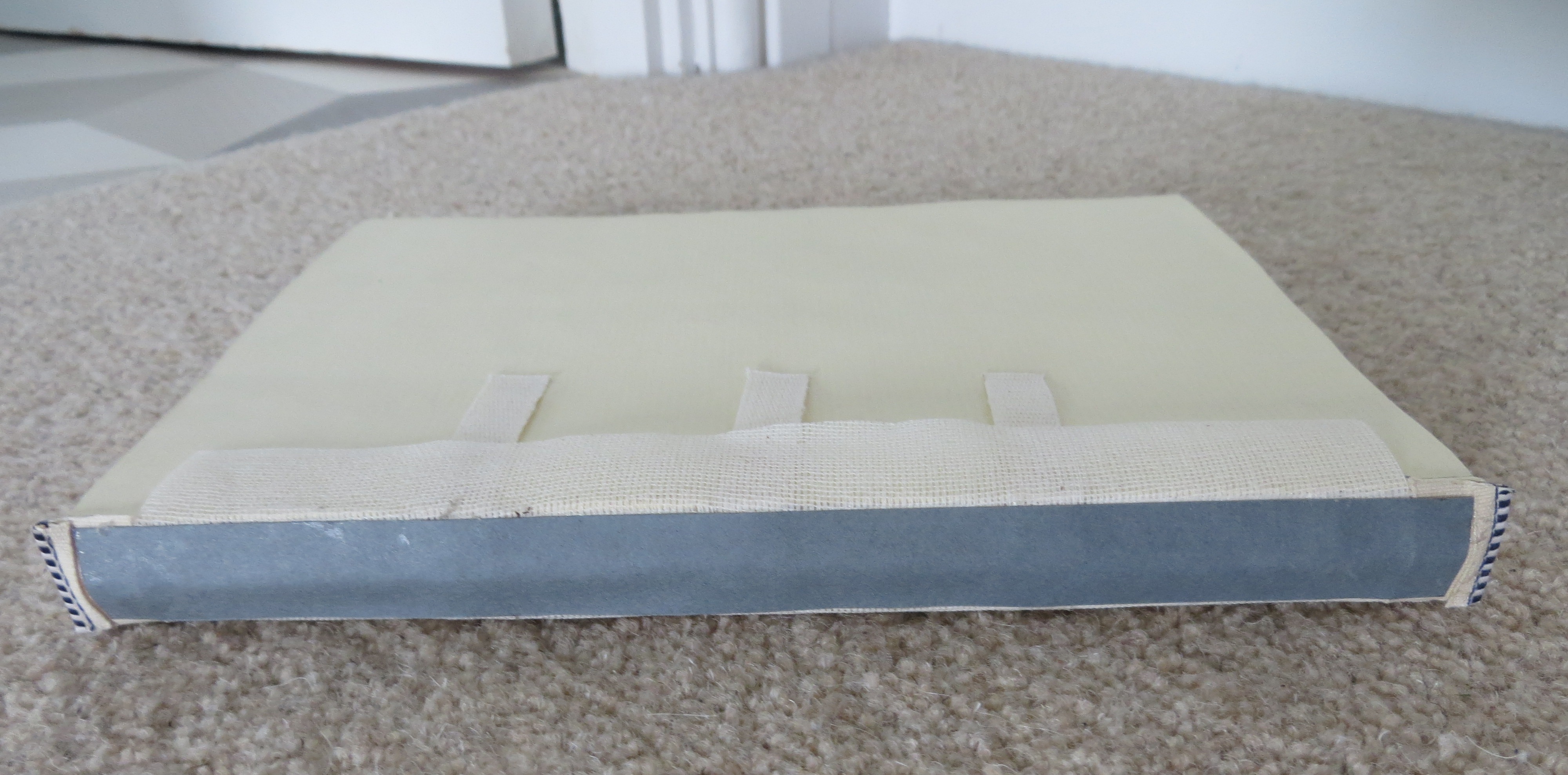
When I last wrote about creating the Sounds for Alexa book, I’d finished sewing the text block. The next step was to glue the mull (thin gauze) to the spine, then to glue some Kraft paper on down the spine on top of the mull, and finally to glue the blue and white end bands, as shown below.

Next, the colourful end papers I had selected were folded in two and glued with a thin, 3mm wide, line of PVA to the inside of the text block – one at the front and one at the back. Cardboard was then cut to the size of the text block plus a 4mm overlap all the way round, and glued to the mull and the tapes as shown in the picture below.

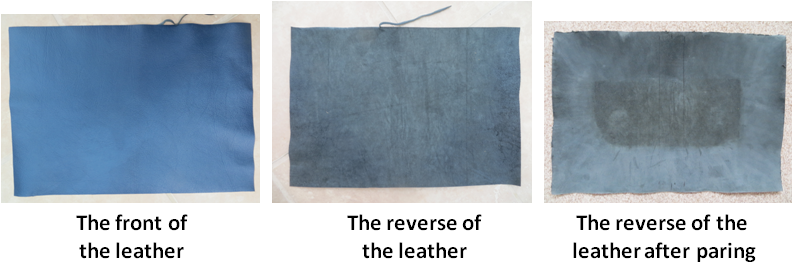
I’d elected to have a leather cover (as opposed to cloth) which is longer lasting and has a more luxurious appearance (see the picture below). However, the downside of leather is that it is thicker and less pliable and so it produces unsightly bulges when it is turned over the edges of the cardboard frame, and noticeable ridges at its edges. To solve this problem, the leather is pared down to a much reduced thickness at the points where it is to be turned and along its edges – in effect all but the central area as shown in the picture below .

Paring leather is a task easier said than done. Doing it manually involves using a very sharp blade and shaving off thin layers over and over again until the requisite thinness is achieved. This is a very messy process which produces lots of small fragments of leather which get everywhere. It took me a couple of hours to complete the task and the particular tool I was using caused me to lose the feeling in my thumbs and forefingers. No doubt it gets easier as one becomes more proficient, however, if I ever use leather again, I shall be investigating using a Paring Service which I’m told can be hired to do the same job much faster and to a better quality than I could hope to achieve, by using machines.

Once the paring was done, the leather was glued to the cardboard frame, the end papers were stuck down to the front and back boards, and the dust jacket was printed and cut to size and folded around the book. Finally a protective plastic cover was fitted to the dust jacket. The completed book is shown below.

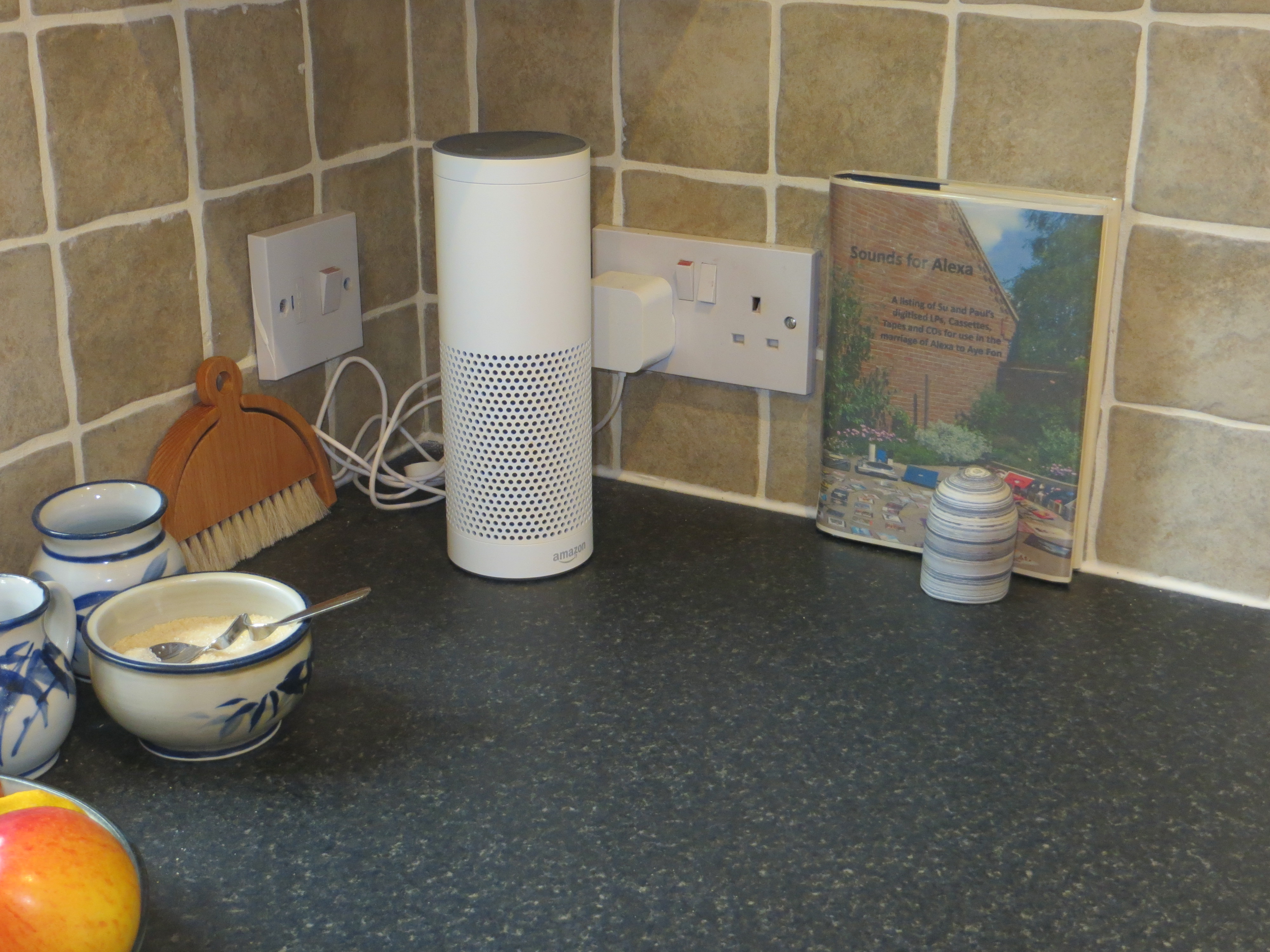
Sounds for Alexa has now taken its place next to Alexa in our kitchen diner, as shown in the picture below. We will see whether it gets put to use as originally envisaged over the coming months.

Scoping Document Finalised

Back in February, work started on the draft Scoping Document for the digital preservation actions required on the PAWDOC collection. Having spent some months actually doing bits of the work identified in the document and refining the document with the insights gained in the process, the final version of the Scoping Document has now been completed. It includes the following list of things that have to be done before a Project Plan can be produced:

  • Decide what document management system or alternative, and any associated databases, are to be used going forward.
  • Decide if Filemaker is to be retained as the platform for the Index or if it is to be replaced going forward.
  • Establish the future platform strategy.
  • Research and understand the actions required to:
    • make any moves planned from one piece of software to another; or from one platform to another;
    • be able to open those documents that don’t currently open;
    • promote the long term accessibility and survivability of all categories of document in the collection;
    • mitigate against the collection’s CDs and DVDs becoming unreadable;
    • mitigate against the electronic part of the collection being separated from the physical part.

Unfortunately Jan Hutar and Ross Spencer have decided they are unable to make any further substantial contributions to the project due to time pressures and other reasons. However, I continue to hope that they will remain associated with the work and be prepared to answer questions by email as needed. Their input to the early part of the work has been invaluable in getting the project to the point where I am actively investigating the practicalities of moving the electronic documents out of the Fish document management system into flat files in a Windows directory. The Fish supplier has a utility which will perform such a transformation, but much will depend on whether it can be customised to produce the file title format required and how much it will cost.

Alongside this activity, work continues on files that can’t be opened and on issues identified by the DROID analysis. Given the position that the project is in at present I would anticipate being able to complete the project plan sometime in the next 9 – 12 months.

Cover Art

The Sounds for Alexa book is nearly finished now with its leather cover on and only the end papers to stick down. I’ll describe these final stages in a subsequent entry when it’s completed. In the meantime, with the outside dimensions of the book fixed, I’ve been able to get on with the cover.

The dimensions of a book cover pose a bit of a problem since they are much longer than the normal paper that you can buy to print on. This particular cover will need to be 21 cm high and some 53 cm long. I was able to solve that problem by remembering the roll of surplus wallpaper lining paper that I had stored away in a poster tube for our grandchildren to draw on at some point in the future. It turned out to be sufficiently strong for a book cover but pliable enough to go through the printer – a delicate balance I’d fallen foul of before when trying to print things for weddings. Setting up the printer wasn’t a problem – you just set a custom page length (of up to a maximum of 676 mm in the case of my printer) and the printer will chug away and print the length you desire.

I decided to create the cover in Powerpoint and started off by setting the page size to be about a centimetre each way larger than the actual dimensions I needed because the printer usually leaves a blank border area of at least half a centimetre around the edge of the page. I figured that if I made the picture a little bit bigger than I need I’d be able to cut off these blank edges to get the exact size required.

Ever since deciding on the book’s sub-title – ‘A listing of Su and Paul’s digitised LPs, Cassettes, Tapes and CDs for use in the marriage of Alexa to Aye Fon’ – I’d had a picture in my mind of a wedding ceremony between our Amazon Echo and my iPhone surrounded by the turntable, ghetto blaster, and laptop, and all the digitised LPs, singles, cassettes and CD’s which I now retain in the loft for proof of ownership purposes. I took a look around our house and decided our patio would be the place to take this photo, and took some experimental shots to see where things should go. This transpired to be very important because the title down the spine turned out to be in a part of the photo which had a brick wall in shade and consequently the black of the title was lost in the black of the shade.

I did some more experimentation and finally fixed upon an appropriate angle to take the shot, and waited for a sunny day. I knew it was going to be quite a big job laying out all the technology, LPS, cassettes and CDs on the patio and wanted to minimise the time they were left in the sun in case they got heatstroke, so I enlisted the help of my son and his wife to help in the photo-shoot and get things laid out and back inside as quickly as possible. We did the shoot on the 2nd July which turned out to be particularly hot so we really did need to work as quickly as possible. However we managed it and got several shots and got all the stuff back in the house and packed up in its boxes ready to go back in the loft.  Quite a palaver – too much of a palaver to have to do it again – so the pictures had to be right.

Well the pictures were OK and I did manage to get a cover – but, in the heat of the day and the moment, I made some errors which I guess a professional photographer would have picked up on straight away. I thought I would be able to enlarge and move the picture in powerpoint to get the exact position for the text for the spine. However, this proved to be very difficult without cutting off a substantial part of the key elements of the photo. What I should have done is taken the picture from further away. My experimentation had not been detailed enough and my photography had been inexperienced and rushed. Such are the differences between the amateur and the professional.

Nevertheless, I was able to choose a photo which minimised the problems and which I was able to get the spine title in what seemed to be a fairly readable position. For the inside flap texts I lifted some extracts from previous posts in this blog, and then I was all set to print out a copy and see how it looked and fitted. The result was OK but there were some issues with the position of the title down the spine (it still went into some shaded areas where the black text wasn’t as clear as I would have liked); and the text on the back flap was a little too far away from the edge of the flap. I made the spine text smaller and adjusted the position of the back flap accordingly. However, a more intractable problem was that the picture simply wasn’t high enough; there would have to be a few millimetres of white space at the top and bottom of the cover because the print had been produced with a border.  I started to explore the print options and eventually came to the conclusion that borderless printing – which is what I needed to get the height I required – is unavailable for anything other than smaller Photo Papers. My printer simply does not support Photo Papers of 220 x 570 mm  (which is what I required); and does not support Borderless printing for anything other than Photo papers.

I compromised. I abandoned the quest to enable borderless printing and elected instead to go for High Resolution Paper and High Quality. The result still had a few millimetres of white border at the top and bottom of the cover, but the title was now clear and the print quality was noticeably better. I decided to quit while I was ahead. So my final print settings were:

  • Media Type: High Resolution Paper
  • Print Quality: High
  • Page Size: Width 200mm, Height 570mm
  • Printer Paper Size: Width 215.9mm, Height 570mm
  • Orientation: Landscape

The image I printed is shown below.

The Printing Solution

Pwofc.com was born 5 years ago and, as it has covered more topics and grown in size, the likelihood of being able to reconstitute it should some disaster occur, seems to becoming increasingly remote. So, when I started to systematically go through every entry in the blog to tease out OFC  insights, it occurred to me that I could, at the same time, copy the contents into a word document which could subsequently be printed and bound into a hardcopy book in just the same way as the Sounds for Alexa book has been produced. That’s what I did, and I now have a 227 page document containing the main contents of the site. I now need to add in the 40 Appendix documents which have links from the main text. The final book may well have around 400 pages or more – but that shouldn’t present a bookbinding problem.

I haven’t established yet whether there is a standard website archiving solution which makes it easy to reconstitute and access a site; however, even if there is one, I think I shall feel more comfortable knowing that I actually have all the content in a single backed-up file. I shall feel even more comfortable when I have the book of pwofc.com in my bookcase.

Droid explorations and DMS alternatives

Things have started to move in our efforts to perform digital preservation on the PAWDOC collection. I’ve been running the National Archives DROID tool across the 190,000 files and Ross’s automated analysis of the results has turned up a number of issues including several hundred duplicates which we are investigating. Among other things, DROID identifies file types and versions, and this has helped another strand of our investigations to try and gain access to about three hundred files which can no longer be opened. 150 of these are old PowerPoint files from the early 90s which neither the Microsoft viewer nor the earliest version of OpenOffice can open. However, the Zamzar online service, to which you download a file and specify what format you want it to become, successfully converted all of the examples which I submitted, into a version of Powerpoint I can open. Zamzar can’t deal with every problem file, especially those for which I no longer have the relevant application, for example, MS Project and iThink, though it did convert Visio drawings into PDF. We’re continuing to work through these files with the intention of getting a clear decision about what to do with each one so that specific actions can be included in our eventual preservation project plan.

Another substantial investigation underway is to try and identify a suitable alternative to the document management system (DMS) that controls the collection’s files. The future of the current DMS is uncertain, and is too complex to reinstall on upgraded hardware without expensive consultancy support. Jan’s exploration of alternative DMS and preservation repositories, highlighted the fact that, while there are several free to use public domain systems available, they all require multiple components and appear to be relatively complex to install, configure, and maintain. This observation has prompted me to be a lot clearer about the immediate requirements for the collection. It is hoped to find a long term owner, perhaps working in the field of modern history, and it’s possible that that person or organisation may require more sophisticated search and access control functions. However, until that eventual owner is found, only a minimal level of single user functionality is needed, and minimal system management and cost demands are essential. In light of this greater clarity, we are now also considering a low tech, low cost alternative which would involve inserting the Index reference number into the title of every file and storing all the files in the standard Windows folder system. After identifying a required Reference No in the Index, files would be accessed by putting the reference number into the folder system’s standard search facility. As well as looking at the pros and cons of such a solution, we are also investigating the feasibility of  getting the necessary information out of the current DMS and into the titles of all the document files. A further challenge that would have to be overcome is that the current DMS stores multi-page documents as a series of separate TIF files. If we were to move to the low tech Windows folder system solution, it would first be necessary to combine the files making up a single document into one single file. This would need to be an automated process as there are too many documents to contemplate doing it manually.

All these activities and more are required in order to be able to assemble a project plan with unambiguous tasks of known duration. We are continuing to work towards this goal.

A Blog is a Fragile Beast

A blog is quite a fragile beast when compared to a physical notebook; it requires reliable storage for a whole suite of files as well as appropriate software and hardware to display its contents. As this OFC blog has grown in size, I have started to wonder what would happen if, for some reason, the backend files were destroyed, or if I simply stopped paying the hosting charges. Right now I have no way of being able to reconstitute the blog outside my hosting company’s infrastructure. This is what I shall be exploring in subsequent entries.
In many ways this is a digital preservation exercise. However, I’ve decided to address it as a topic in its own right because of the special characteristics of blogs; they are large integrated entities which have to be  accessed as a whole. This OFC blog is nothing special; it is built on the WordPress platform which enables text and images to be created directly without having to deal with HTML code; and it is hosted by a specialist company. I pay an annual fee for the domain name – pwofc.com – and for the hosting service; and as part of that service I can request the hosting company to take a backup of the site whenever I wish. WordPress is free and gets updated from time to time. In other words, this is a very standard configuration of the type probably used by millions of bloggers. I’m hoping, therefore, that a practical archiving solution which enables a site to be easily reconstituted, will be readily available. We will see.

Figuring out how to do it

What are the key components of Household Financial Management? Well, the example described in previous entries indicates that the following elements should be on the list:

  • A decision about where income should be placed (in the example, all income went into the joint account);
  • Information (in the example, this included the joint account and credit card statements, and the amounts previously spent on Items of Expenditure);
  • Actions (In the example, this included the creation of an annual budget, the allocation of statement line items to the budget items of expenditure, and the monthly update of the budget sheet and discussion between the partners);
  • Tools (In the example, an Excel spreadsheet was used to create and manage the budget, and to perform the allocations on the bank statement);
  • Discussion (in the example, all financial decisions were discussed by the couple – particularly during the monthly budget update session).

Of course, there are many different ways in which these can be addressed. A few of the myriad other possibilities are listed below:

  • A decision about where income should be placed (in the bank account of the individual that earned it; in a safe in the house);
  • Information (online check of account transactions; payment slips and receipts; personal memory of what was spent);
  • Actions (moving money to ensure the account doesn’t go into the red; giving one partner money to do the housekeeping; putting an amount every month into a savings account; planning how much to spend on next year’s holiday);
  • Tools (various software packages and apps; cloud-based budgeting services; paper and pencil);
  • Discussion (conversations when: a major spend is contemplated; when the account is about to go overdrawn; when a major loss of income is imminent; when income is received).

So, how should people setting up a household decide what approach to use? Well, the obvious thing to do these days is to check the net. A search on ‘Household Financial Management’ in May 2017 produced a whole range of web sites offering advice, insights and tools. At the top of the list was the very helpful and thorough ‘Beginner’s Guide to Managing Your Money’ from the UK’s Money Advice Service. As well as providing extensive guidance, this includes an online Budget Planner tool which goes through a very comprehensive list of types of expenditure.

Adding ‘Tools’ onto the end of the search term again produced a plethora of hits including PC Magazine’s ‘The best personal financial services 2017’. This highlights 7 applications including Mint.com for spending analysis; Quicken and YNAB for budgeting; and Doxo for bill payment. Another site – Techradar – identifies the five best free personal finance software programmes 2017 as being: Money Manager Ex; Gnucash; Mvelopes; HomeBank; and AceMoney Lite.  No doubt there are many more software packages, apps, and cloud services out there.

There is clearly no shortage of practical advice and guidance available for those who want to seek it out; and there are a whole variety of digital tools that can be employed to plan and track household money. However, advice and tools on their own are not enough to make a success of household financial management. The critical element is down to the individuals concerned: they must have a determination to avoid financial difficulties and to change lifestyle if such difficulties are encountered.  Furthermore, the way that household finances are actually managed not only dictates a particular lifestyle, but also reflects the type of relationship that those in the household have. These two critical implications need to be born in mind by those who set out to establish how to run their own household finances.

In/Outs and Credit Cards

Two types of events that can complicate household financial management (HFM) are In-outs (where the money is not part of the budget but just passing through the account); and the use of credit cards. The way that these aspects are dealt with in the HFM example previously described, is outlined below.

In/outs occur when, for example, a purchase is made on behalf of someone else and that person pays the money into the account either before or after the payment is made. The example Budget Sheet deals with this by employing two line items: ‘In/out Spends’ and ‘In/out Balance’. The total of all In/out monies going out (negative amounts) and coming in (plus amounts) in a particular month is entered in the ‘In/out Spend’ cell. The In/out Balance cell is calculated by adding this month’s In/out spend amount to last month’s In/out Balance. To keep track of what each amount refers to, a comment is attached to the cell, recording each individual transaction that makes up the cell total.

It may be useful to give specific types of In/outs their own few lines on the spreadsheet. For instance, in the example Budget Sheet, separate lines were provided for the expenses of one of the partners because the employer paid expenses to the same account that the salary was paid to. Hence, train tickets and other travel expenses were paid out piecemeal from the joint account and the money was reimbursed as a total amount at the end of each month. The line items used for this were ‘Expenses Spend’ and ‘Expenses Balance’.  The same principle can be applied to any kind of In/out transaction.  To make it even clearer in the spreadsheet of what is coming in and going out, the In/Out spend line could be separated into two separate lines – one for ‘Incoming Money’ and one for ‘Outgoing Money’.

Credit card transactions are another potential complication for month by month Budgeting, though they do have one significant benefit; they provide a statement in advance of when payment has to be made, which gives time for the impact on the budget to be assessed, and for any necessary actions to be taken. However, they also bring with them two complications. One is that the statement is paid as a total amount, so that the individual actual amounts that the total is made up of have to be identified and then placed on the budget sheet separately. Secondly, refunds are often made in a different month to when a purchase was made; and sometimes – at least for the credit card used in the example – the refund amounts in line items on the statement are not reflected in the statement total – which can be very confusing.

In the HFM example, the Statement partner allocated each line item of the credit card statement to a particular Item of Expenditure on the budget sheet. Then, when the end of month budgeting was done, the actual credit card amounts were inserted into the relevant cells for the following month when the total credit card bill was to be paid. This meant that, at the monthly budgeting session, a quick review could be done of the following month’s expected expenditure and bank balance in the knowledge that some of the figures were actual outgoings from the credit card.

The way refunds are dealt with by the credit card in question, however, is not something that the couple concerned have been able to find a standard way of dealing with. Instead, the partner who manages statements makes sure that one way or another the refund amounts and associated purchase costs, are reflected somewhere on the budget sheet. Sometimes the In/out facility is used or else a manual note is made which can be referred to when the next statement comes through.