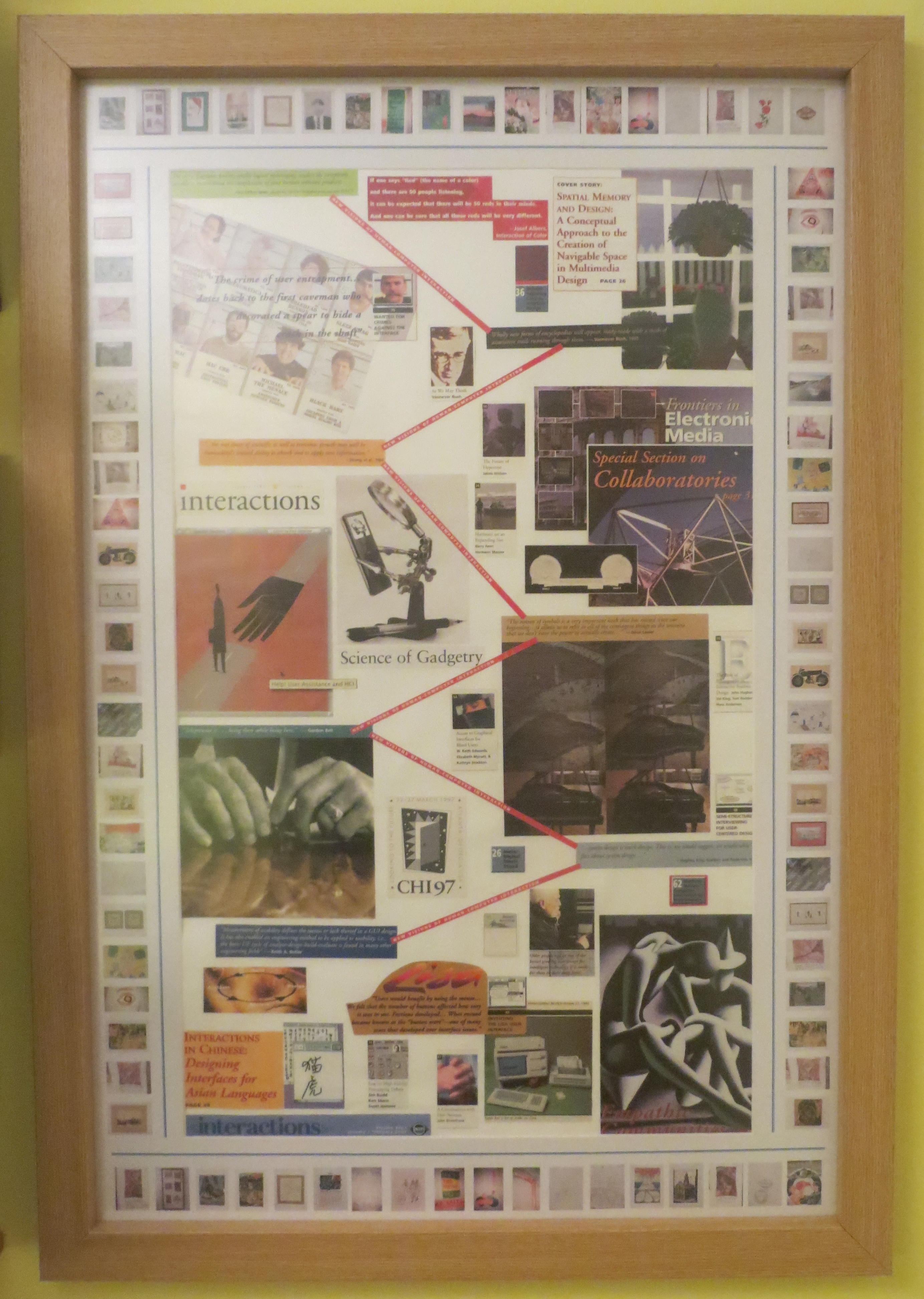
An initial look at physical frames

In researching physical frames that are currently available I came across the following:

  • Movie poster frames that are front loading i.e. you don’t have to take them down from the wall to change the poster that’s being displayed. Around $85 for a 27 x 41 inch frame from http://www.spotlightdisplays.com
  • In the UK, front loading frames for business are known as ‘snap’ frames. An A0 (23 x 33 inches) snap frame costs around £30 from http://www.tradeframes.co.uk. A 27 x 41 inch silver snap frame costs £35 (on offer) from http://www.sign-holders.co.uk
  • There are also swinging display racks in which you can have instant access to a large number of pictures. However these tend to be quite expensive. For example, a 50 picture system costs $695 from http://www.clevelandskyline.com
  • I also came across variety of possible products in Staples including a Nobo flip chart board which you could use to suspend pictures on (somehow) at around £60; a Cork board (600 x 900 mm) at £44; an A1 clear presentation slip case at £5.50, and an A1 presentation case.
  • A standard frame of 36 x24 internal dimension, and a with a beech-type moulding measuring 40mm wide and 30mm deep, can be obtained for £33 from http://www.frame-company.co.uk/beech-36×24-frame-with-white-mount-cut-for-image-size-30x20_1.html
  • I did NOT come across any frame that also offered poster storage to its rear.

So, my conclusion after initial investigations of frames is that I need to decide between a snap frame which enables the contents to be changed while still fixed to the wall, or an ordinary frame which probably would look nicer but which would need to be taken down to change its contents. I think I’d like to take a look at a snap frame before making the choice.

The Poster and Picture Challenge

I have a variety of poster sized material stored away in tubes or rolled up in the loft. I also have smaller sized pictures stored flat in an art folder, and some acrylic paintings done on board. They are not on display because I don’t have room for them all on my walls – nor the money to frame them all.  Of course, they can all be photographed and then some of the originals could be thrown away (and I have already done just that a few years ago for quite a few of my poster sized items); but there are others that I want to keep in their original physical form. I would prefer all the originals to be stored unrolled and in an easily accessible place so that I can rotate their display in fixed picture frames already on the walls.

The solution seems to be in two parts – digitising (i.e. photographing) the posters and pictures and coming up with ways of displaying them to their best advantage; and the storage and periodic display of the physical items. To add a little immediacy to the physical display challenge, I have been planning to create a large collage for a while, and so I shall attempt to make the frame I display it in a rotating display unit suitable for displaying the other posters and pictures.The space in my study in which the frame will be mounted dictates the frame size – it cannot be bigger than 29.5 x 60 inches.

Another requirement which I’m going to bear in mind is that I’d like to be able to store artefacts and to display a subset of them at any one time. Perhaps the rotating display unit can serve this purpose as well.


Reading an Electronic Journal

I received notification of my first electronic-only volume of BIT a few days ago and have just finished going through it. The experience was fine. I upped the text size in my browser so it was easy to read and zipped through the papers in pretty much the same way and pace as I used to with the hardcopy. The main difference was that previously I might have gone through the hardcopy in bed and then, later, sat at my desk to index, download and store any of the papers I was interested in; whereas now I need to do all of that at my desk. It could be argued that I could read the papers elsewhere on an iPad and then go to my desk to do the indexing and storing; however, now that I’m accessing the papers directly from the web site, it seems more sensible to do the indexing and downloading as and when I’m doing the reading.

Anyway, overall the experience of receiving an electronic journal, reading it and filing papers I’m interested in, was fine – no problem. However, that is not how it will be going forward. Since I have elected to take alerts on papers as they are accepted into the journal, I will already have seen several if not all of the papers in the electronic editions of the journal that I receive in future. I will report on that after I have experienced it.

Movie editing and formats

Over the last week or so, I’ve been exploring how to convert DVDs into a format that I could edit, store and view on my laptop. It was a task I’ve been waiting to do for a couple of years, ever since getting some family cine film transferred to DVDs and finding that copying and editing them would take some specialist software and time and effort.

I’ve found that there are typically around seven or eight files on a DVD with various file extensions including .IFO, .BUP and.VOB; and that the major part of the content is in the VOB files. A quick bit of research on the net established that a VOB file is part of a standard container format for DVD-Video media which breaks up the content into a series of 1 Gb or less computer-compatible files. The VOB files can be converted into a single file in  another format such as MP4, using specialist packages, conversion tools, or freeware.

I decided to use DVDVidesoft’s FreeStudio which includes a specialist DVD Converter program amongst its many facilities. This appears to work very well and I have converted several DVDs into MP4 files with no apparent loss of quality with one exception: when the camera moves very quickly across a scene, the conversion process seems to make it a little more distorted than it already is. For this reason, and because I’m no expert in these formats, I’m keeping the original DVDs just in case.

Several of my DVDs contained converted cine film which I wanted to break apart into separate logical units which could be viewed and stored individually. To perform this editing work I chose the Microsoft software “Movie Maker” which comes bundled with the Windows operating system or which can be downloaded from a Microsoft web site. The version of this software released in mid 2012 will output files in MP4 format (previous versions did not have this capability).

There appears to be no help facility with Movie Maker, however I eventually got the hang of it after a bit of trial and error and some advice from various sources on the net. The process I followed was something like this:

  • Start work on a movie: Use the ‘Add videos and photos’ function to browse and select the movie to be worked.
  • Remove unwanted frames: Identify  the start and end of any parts that you want to delete because they are of poor quality etc,, then put the timeline curser onto the start point and select the SPLIT command. Do the same for the end point. The section to be removed is now a separate element in the timeline and can be deleted by right clicking on it and selecting REMOVE.
  • Break into separate parts: Use the SPLIT function to break up the material into all the separate elements that you want to save as individual MP4 files.
  • Save a version: Use the Movie Maker function ‘Save Project’.to save a version that you can return to later.
  • Select the first element to be saved as an MP4 file: Click on each of the unwanted elements in turn, right click on them and select the REMOVE function. When this has been completed, only the element you want to save as a single file will remain.
  • Insert a Title: Use the TITLE function to include a title frame at the beginning of the movie.
  • Save the element as an MP4 file: Use the ‘Save Movie’ function to save it as a file in its own right. I use the ‘Recommended for this Project’ setting to specify the quality and standards to be used.
  • Close Movie Maker and start again to save the next element: To select another element to be output as a file in its own right, close down Movie Maker, then open it up again with the Movie Maker Project that you saved earlier. Then follow the same steps already described to isolate the next element and to save it as an MP4 file.

Overall, the combination of FreeStudio and Movie Maker seems to enable me to do everything I need to produce stand-alone movie units which can be itemised in my photo index, stored and played individually on the laptop. For the most part I have produced each element in MP4 format since that seems to be a widely used standard which is likely to be long lasting. However, in one case I was unable to do the conversion and have retained the file with its original .mov extension (an Apple QuickTime format) which works just as well on my laptop.

How to print Slip-in Tabs

Some photo albums have slots for thin cards that can be written on to describe the photograph they are adjacent to. However, since I include a unique reference number and short description in the file name of each of my photos, I prefer to print out that information onto a Slip-in Tab prior to inserting it into its slot. If you want to print your own slip-in tabs, This is how to do it:

  1. Create an Excel file with rows the exact length and height of the slip-in tab you desire. When the file is printed onto thin card, these can be cut-out to produce the individual slip-in tabs. For slip-in tabs which have two rows, one referring to the photo above and one referring to the photo below, the overall height of the two rows together must be the exact height of the physical slip-in tab you will eventually cut out. For such tabs, insert a heavy black divider line between the two rows to distinguish between the text for the upper photo and the text for the lower photo.
  2. Insert cut markers into the file to assist with the production of the physical slip-in tab. Do this by inserting narrow columns before and after the slip-in tab column and reduce the width of the slip-in column by the width of the narrow columns just inserted. Insert a faint border line in each narrow column to mark where the horizontal cuts are to be made. Insert the same faint border down the left hand side of the left hand narrow column and the right side of the right hand narrow column to act as a cut marker for the left and right sides of the printed sheet. Since this all a bit fiddly to construct here’s a template I made earlier (Slip-in Tabs Template v2.0) – its all set up to produce slip-in tabs that are 15.4 cm long, 1.8 cm high and with a divider line to distinguish between the text for the upper photo and the text for the lower photo.
  3. Go to a folder containing some or all of the photos you want to print tabs for. Highlight all the files you want to obtain the file title information for. Then, while holding the shift key down, right click any of the highlighted files. When the context menu pops up, left click on the COPY AS PATH entry that has magically appeared because you’re holding the shift key down. Next, go to the Excel spreadsheet, place your curser into the first of the slip-in tab rows that you have already prepared, and select PASTE SPECIAL – VALUES ONLY. This will place the full path name, including the file title, into each row
  4. To eliminate the unwanted elements of a particular path name, select the elements concerned and copy them (for example, ‘C:\Users\Paul\Pictures\0034 – Christmas 1986\’). Then select all the cells that that exact unwanted text appears in and press CTR-F. When the Find dialogue box comes up, paste the unwanted path elements into the FIND WHAT box and then select the REPLACE tab but leave the REPLACE WITH box blank. Then select the Replace All button. This will effectively replace all the unwanted text with nothing i.e. it will remove it.
  5. Do the same Find and Replace operation to eliminate the file extension (such as .JPG).
  6. Perform any final formatting you require (such as font size and wrap around) and then print out onto A4 soft card (180 GSM upwards).
  7. Take each printed page and use the cut markers to cut out the slip-in tabs. I use a sharp paper knife for the purpose and first cut away the sides and top and bottom of the set of tabs. Then, for each tab, I cut it so that there is just a sliver of paper at the end attaching it to the rest of the tabs (see the picture below). That way you can cut out a whole A4 page of tabs without losing their order. Then, when it comes to actually putting them into the album, they can simply be pulled away from the adjacent tab they are attached to. If you’re cutting several pages at once its convenient to keep them in the pages of a magazine until you use them.


Dealing with Physical Images and Negatives

In the first post in this topic, three aspects were identified as being key to organising photo collections: dealing with the physical images and negatives, digitisation of the images/negatives, and indexing. I’ve already discussed Indexing so this post is going to be about the physical images and negatives.

Whether your photos and negatives are in lots of different places and all mixed up, or are a little more ordered than that, the first step is to organise them so they can be indexed. To do this follow the general Order From Chaos approach outlined in the OFC White Paper i.e. assemble, sort and index.

Assemble: Be clear about what material is being included and identify where it all is. If possible collect it all together in one place – and then do another check to find anything you might have missed. Generally speaking the material should include printed photos, negatives, photo albums and electronic images.

Sort: Identify a sort criteria (examples could include people, dates, or places), and go through all the material placing individual items into piles according to the criteria you have selected. For example, if your criteria is date, have a separate envelope for each year or span of years and place the photos into the relevant envelopes. Once you have done an initial sort, go through each subset checking the allocation is correct and getting the order correct within each subset. For prints, their physical appearance and whatever numbers or information has been recorded on them (front or back), can be used to identify which prints were produced at the same time. The same approach can be used to match up different strips of negatives that came from the same film. At this stage negatives can also be matched to the prints.

If you are not familiar with the contents of the photos (if, say, they belong to parents or relatives, or are a job lot purchased at an auction), use whatever means are available to identify what they are of and when they were taken. If there is someone available who is familiar with them, talk with them about each photo. Consider recording the conversation (perhaps using a mobile phone app) to both assist with identification downstream and to augment the historical background of the material. Note the contents and date on the back of each photo. Alternatively, note an interim serial number on the back each photo and record the information about it in a notebook or computer.

Index: When all the material has been sorted, decide what you want to do with the physical items. An obvious option  is to put them into a photo album – I use slip-in albums that take two 6×4 prints on a page. An alternative is to keep them in envelopes or some other storage system and just access the images on screen or in a printed photobook.

Once you have decided on your approach, do a final check to ensure that you have sorted the images into the same order that you are going to put them into photo albums or to store them. If not, sort them again to get them into the right order. Now create the Index and ensure it has columns for all the information you will need to manage and find the images downstream (further details about index contents are in my earlier post on the subject).  I use an Excel spreadsheet to maintain the index – here’s a template as a starting point if you want to go down that route (Photo Index Template v2.0).

Once your index is ready for use, go through all the images methodically creating index entries and numbering each print accordingly (I tend to use a biro on the back of each print and haven’t noticed any problems with doing it this way). Negatives should also be numbered according to the index and can be stored in a separate box, folder or other storage system (I keep negatives in the pockets they came in, write the numbers on the pockets and keep them in serial number order in a box in the loft).

After you have indexed all the material, now is the time to scan the images to obtain electronic versions of each one (this exercise will be discussed in a subsequent post). Once the scanning has been completed the material must then be placed into its final destination(s). If this is to be a slip-in photo album, here’s some further guidance based on my own practical experience:

Spaces: There’s nothing more infuriating than coming across another photo sometime later only to find there’s no room for it in the album. To avoid this, leave a couple of empty spaces after every 20 photos or so.

Large photos: If you are using an album that will take two or more 6x 4 prints on a page, I’ve found that you can include larger prints by slicing a slot in the top of the acetate of the lowest print slot and slipping the photo into it as shown in the example below.

Small photos: To keep multiple small photos (such as photo booth prints) in place in a single 6×4 slot, take a piece of paper or card roughly the size of the 6×4 slot and make some diagonal cuts for the bottom corners of the prints you want to include as shown below (the photos have been reversed for the purposes of this illustration).  These don’t need great accuracy and can be done very quickly and roughly. Once the prints are in place, just slide the piece of paper into the 6×4 slot. Here’s a Template for printing out a piece of paper that will fit in a 6×4 slot – cut to the guide marks – there are two to a page.

Slip-in tabs: If your album has spaces for slip-in tabs, record each print’s number on the tab together with any descriptive information you want to include. The approach I take is to print out slip-in tabs with the information that’s contained in the file name of each image (i.e. reference number and short description). Detailed instructions and a template for this are provided in another post.

Spine labels: If you fill several photo albums you’ll need something on each album spine to identify it. I try and avoid sticking and gluing approaches as they tend to discolour over the years. Instead I print out a label to the width of the spine and leave enough space at the top to bend it over and push it down the inside of the spine as shown below. The albums I use are sold with removable plastic covers so the labels sit underneath the plastic cover and, with the tops pushed down the inside of the spines, tend to stay in place quite well. If the tops won’t stay in place inside the spine you could try using Glu Dots.

Having done all this, your physical prints and negatives should all have a home. If you have chosen to put your prints into physical photo albums, you may wish to continue the collection with new images even if you don’t normally get prints of the electronic photos you are now taking with your modern camera or phone. I do so – but only with the most interesting photos i.e. a very small subset of the photos I take. On-line photo shops such as Snapfish, PhotoBox and many others make the process of getting prints easy and cheap.

First experience of Alerts

Following my initial investigations on this topic I decided to do the following:

  1. Change my subscription to BIT (via the Institute of Ergonomics) from both hardcopy and online to online only.
  2. Download electronic copies of all the BIT articles indexed in my filing system, and store them in my FISH document management system.
  3. Dispose of all my BIT hardcopies by putting an advert in The Ergonomist, the monthly magazine from the Institute of Ergonomics.
  4. Start to try and read new issues of BIT on screen and document how I find it.

I have changed my subscription and am now awaiting the first online issue of BIT. In the meantime I have elected to receive iFirst Alerts – a facility which sends you an email when a BIT paper has been accepted for publication in the journal and is available on the website. This effectively provides access to the paper a lot earlier than waiting for the printed version. The alert email includes one or more titles and their associated web links. By following the links the current version of the paper can either be viewed or downloaded.

I’ve already had about four alerts and have found accessing the papers and reading the abstracts on screen, to be very easy. I haven’t yet needed to read the full text so can’t yet comment on how that experience compares with the hardcopy. However, to make a note of a paper I’m interested in under this new regime has required a change in my routine. Up to now I’ve been making an entry in my personal index with my reference number recording the month of publication, volume and issue number, and start page number; and the index entry itself recording what I found noteworthy about the paper (i.e. not necessarily the title of the paper). An example of my Index Reference Number is below:

PAW/BIT/Dec12/31-12/1173

Since the alerts are for papers that have not yet been allocated to a volume or issue, my index entry must act as a placeholder until the actual journal is issued. Consequently, I have included the paper’s temporary reference in my Index Reference Number as in the example below:

PAW/BIT/XXX13/32-YY/0144929X.2012.733412

I have also included the full title of the paper in the index entry itself to make it easier to find the paper when the journal proper is published. At that point I will need to update my index reference number and download a copy of the final version of the paper into my document management system.

Photobooks work for mementos!

Well, the photobook arrived earlier this week, all pristine, clean cut, glossy and smelling like a new book should. Inside, the images and text are bright and clear. Overall, it’s everything I hoped for, and certainly looks great on my bookshelf. I’m convinced that this is a viable media for making mementos more accessible and enjoyable.

Having said that, a detailed look at the book highlighted a few points to remember for the future:

  • Snapfish doesn’t provide an automatic page numbering facility so I inserted my own in a small text box at the bottom of each page. However, some were too low and only half of some page numbers got printed. Of course, this and other typos should be picked up by printing out a draft and doing a detailed check before finally submitting for printing.
  • Some of the small headshot photos I included next to signatures on the retirement/leaving cards were too dark to be clear. Small headshots need to be relatively light.
  • Almost all the text in the jpg page images provided for the book, appears within a very faint greyish background. It’s not particularly noticeable until you focus on it, and it doesn’t detract from the look of the book – but it’s definitely there and I don’t yet understand why.

Regarding the second of my objectives – to try and understand what to do with the physical objects that are represented in the photobook – I have gained some clear insights. The answer in brief is one of the following: destroy, re-use, display, store, or make no change. The display option emerged, at least in part, from a TV interview with Aggie MacKenzie in connection with her series on storage hoarders. One of the things she said is that you should pick out a few photos that you like and put them on the wall and enjoy them; and throw the rest away. I think the concept is ideally suited to mementos in general, though slightly modified: pick out the things that are especially valuable to you and find a way to make those physical things accessible so you can enjoy them; digitise the other material that you value and find a way to make them accessible (for example, in a photobook); then throw away all the rest. Below is a list of the items I used in my photobook and what I ended up doing with them.

Item Digitisation method What I did with it afterwards
Leaving and retirement cards Scanned Destroyed and recycled
Retirement email messages None required Put in zip file and filed on PC
Leaving texts, poems and annotated gift wrap Scanned No change – retained inside the Atlas that was given to me
Job offer letters Scanned Destroyed and recycled
Paypacket envelopes Scanned Destroyed and recycled
Payslips Scanned Stored the first and last two from each job. Destroyed the rest.
Certificates (University Degree, Ergonomics Society award) Scanned No change (one in certificate file and one on the wall)
Special company brochures/newsletters Scanned Retained in display folder
Cosmos project brochure Scanned Retained in display folder
Reject drills and cutting bits (souvenirs from lathe job) Photographed Put three examples into my display cabinet and threw away the rest
Crystal paperweight from bid win Photographed Put into the crystal cabinet in the dining room
CSC Management principles in desk stand Photographed  and scanned Put into loft box of old folders and desk equipment, awaiting re-use
CSC marketing folding block Photographed Put into the toybox
CSC logo lapel pin Photographed Put into my jewellery box
CSC Vision Card Scanned Destroyed and recycled
CSC key ring Photographed Put into hall drawer in case we need a keyring
CSC marketing peppermint dispenser Photographed Threw it away for recycling
Plastic block certificate for contributing to CSC papers Photographed Threw it away

It was hard throwing away some of the things, particularly the retirement and leaving cards (some of which were over thirty years old), even though I know I’ll look at their contents in the photobook much more now than I would have before.  Somehow there’s something about throwing away an original thing (I can imagine having the same pangs about deleting a special set of electronic files). I guess different people have different thresholds – but whatever your threshold is, based on my experience, there’s a little pang of regret when they go.

Insights from creating the Photobook

The actual process of assembling the material was very instructive. I decided to create a photobook using the Snapfish service mainly because, at the time, they were offering a 50% discount for all photobooks ordered by Sunday 9th December. This provided a useful time box to prompt me to get it done quickly and to gain the insights I was looking for rather than trying to get the perfect result.

The Snapfish photobook service enables you to position photos and text anywhere on a page at will. However, I found it more flexible to create the pages in Powerpoint and to export the completed pages as jpg images. These could then be inserted into each of the photobook pages as if it were a single photograph. This approach has the additional advantage of leaving you with an electronic version of what you have created (I have yet to explore if Snapfish are prepared to provide an eBook version of what they print).

As I discovered shortly after starting, getting the facts straight about 45 years of employment is quite challenging, and I ended up working intensively for several days. I finally finished the photobook at 11pm on Sunday night within just one hour of the Snapfish 50% off deadline. I ended up with a 72 page 8 x 11 portrait photobook with custom front and back hardback covers and special UV coating (to give it extra sharpness and shine, and to reduce marking) costing £38.35 including postage.

Here are some of the insights I gained:

  • The more time that passes, the harder it is to put faces to names and vice-versa,. It’s always best to make a note at the time.
  • Many people have entries in Linked In, Facebook or other on-line sites, so it’s becoming increasingly feasible to obtain people’s photos through the internet.
  • The more you think about what’s happened over the years, the more you keep remembering about it (there are now several additional things I would like to include in my work experiences photobook).
  • Trying to scan papers that are larger than A4 on an A4 flatbed scanner doesn’t give the best results.
  • Papers with a variety of different signatures written with different pens and ink colours, don’t scan well and require the scanner settings to be adjusted manually to get the best result.
  • Trying to establish dates and events by looking at collected papers and mementos is feasible but very time consuming. It would have been a lot easier if the items had all been sorted and indexed.
  • It’s quite easy to create photobooks once the content has been defined and assembled, and it can be relatively cheap if you take advantage of special offers – in this instance under £40 for 72 pages.

I now await the photobook to arrive to draw further conclusions about format, scanning quality etc., and, most importantly, to decide which of the artefacts I have used can actually be disposed of as originally envisaged.

The experiment – scope and analysis

The analysis of what I wanted to achieve with the retirement cards and messages confirmed my initial notion that I should digitise them and include them in a printed photobook. Then, I got to thinking that I could include the leaving cards from my previous jobs; and it was a only a short jump from there to deciding to make it a photobook of all the jobs I have had and all their associated artefacts (including offer letters, payslips, and, in one case, reject drills from when I worked on a lathe). This much extended scope would provide a pretty searching test of the feasibility of digitising and bringing to life such mementos.

I extended the analysis to include this wider scope, with the results below:

During my lifetime I want:

  • the retirement comments and messages to be read…. by me ….occasionally;
  • the people who sent me the retirement cards and messages to be remembered…. by me… occasionally;
  • pride to be felt on reading some of the retirement messages…. by me…. occasionally;
  • the jobs I have done over the years to be glanced through…by me…occasionally;
  • the names and pictures of people I have worked with to be available as a reference source… by me… when the need arises;
  • the information about my career to be available… for anyone who is interested… when the need arises.

After death I want:

  • the material to be either kept or thoroughly destroyed (because of the personal information it contains)… by whichever relative it is passed onto;
  • the book to be glanced at…. by the relatives who knew me …. a few times;
  • fond memories of me to be felt…. by the relatives who knew me… a few times;
  • pride of the family to be felt… by the relatives who knew me… a few times;
  • the photobook to be used to tell family offspring about their ancestors… by older members of the family… when appropriate.

I must say that I found the analytical process particularly hard to do. It was difficult to identify and verbalise my feelings; and it felt uncomfortable and self indulgent doing so. I have concluded that for this to be a useful tool for others (and indeed for myself), it would need to be in the form of a picklist with the options already identified. Perhaps that is something I’ll work on later. Another thing I observed was that my wishes were different when I expanded the scope from my retirement cards and messages to all the jobs I have done in my career – even though the latter included the former. It seems that different groupings of mementos, and the different contexts one places groups of mementos in, can actually change what one wants to do with them.